

Font Identification
How to Find What Font a Website Is Using (5 Easy Ways)
You found a website with gorgeous typography and you want to use the same font on your own project — but the site never tells you its name. The good news: a web page carries its fonts in plain sight, and there are several quick ways to uncover them. This guide ranks five methods from the easiest one-click approach to the most thorough developer technique, so you can match any style you find online.
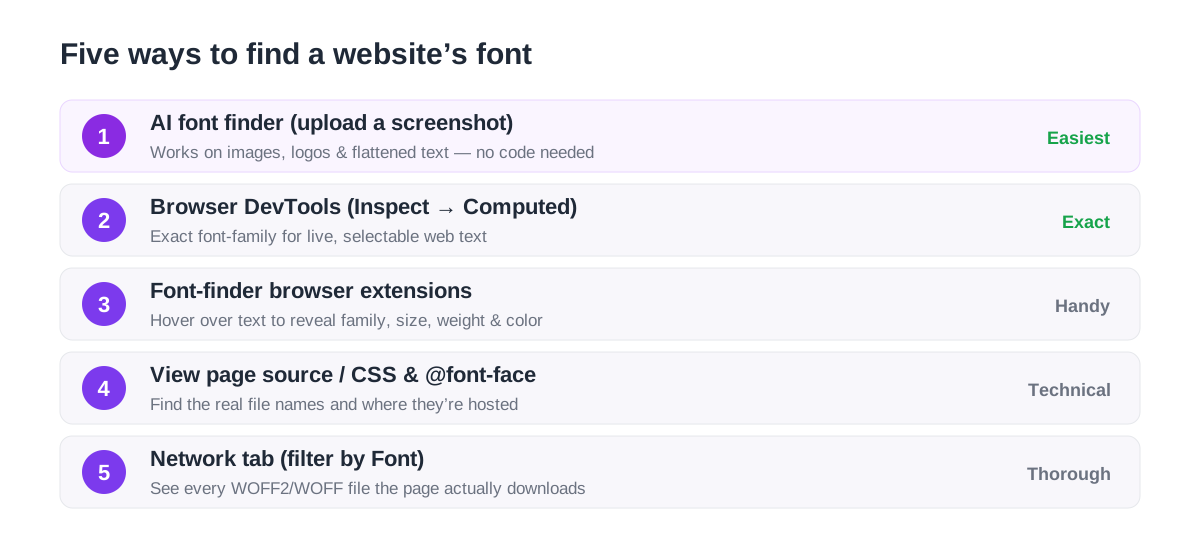
1. Upload a screenshot to an AI font finder
The fastest, most universal method needs no code at all. Take a screenshot of the text, crop it tightly around a word or line, and upload it to an AI Font Finder. Computer-vision models read the actual letterforms — the serifs, terminals, curves, and proportions — and return ranked matches with confidence scores plus free, look-alike alternatives.
Why start here? Because it works even when the other methods fail: on text baked into an image, on a logo, on a <canvas> element, or on a screenshot you took on your phone. There is no source code to read because you are matching the shapes directly. For a deeper walkthrough, see our guide on how to identify a font from an image.
2. Inspect the text with browser DevTools
When the text is live, selectable HTML (not an image), your browser already knows exactly which font it is drawing. Right-click the text and choose Inspect. In the panel that opens, look at the Computed tab (Chrome and Edge even list the actual *Rendered Fonts* at the bottom) or the Styles pane to read the font-family, font-weight, and font-size.
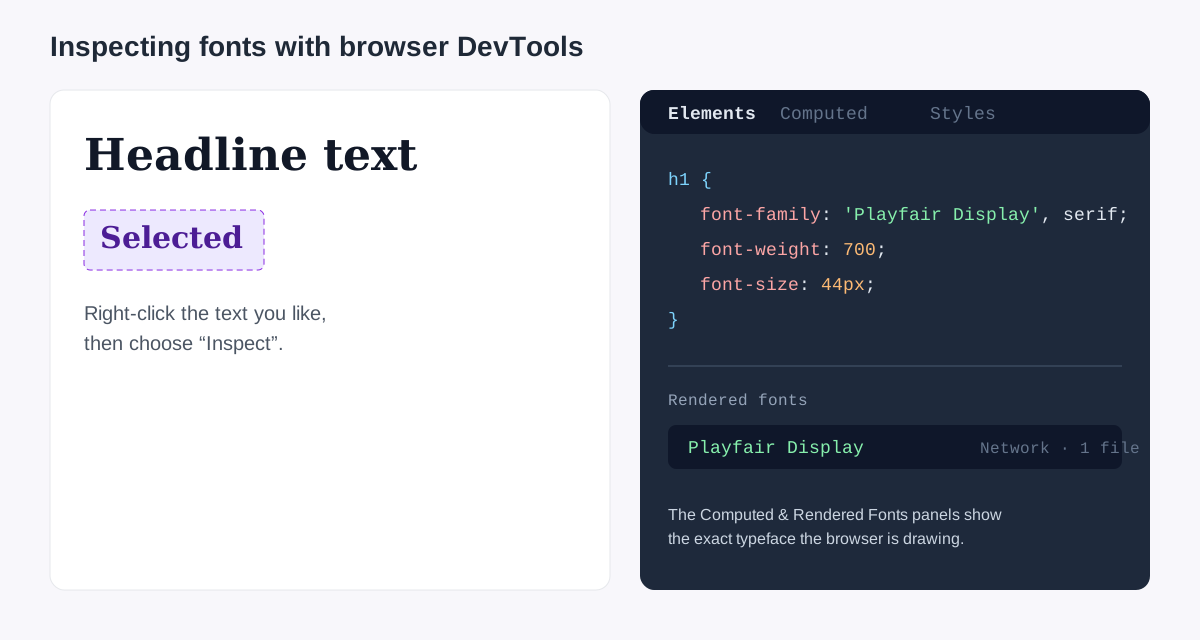
A subtle trap: the font-family property lists a *stack* of fallbacks, for example "Söhne", Helvetica, Arial, sans-serif. The browser uses the first one it can load — so check the Rendered Fonts readout (Chrome/Edge) or Firefox’s Fonts tab to confirm which font is actually on screen, not just the first name in the list.
3. Use a font-finder browser extension
If you do this often, a dedicated extension is faster than opening DevTools every time. Tools like WhatFont or Fonts Ninja add a button to your browser; click it, then hover over any text to see a tidy tooltip with the family, size, weight, line-height, and color. Some can even reveal where the font is hosted and link to where you can get it.
Extensions are perfect for casual research, but they only read live web text — for anything flattened into an image you will still want the AI font finder from step one.
4. Read the page source and CSS
For the ground truth, go to the source. View the page source (Ctrl/Cmd + U) or open the Sources panel in DevTools, then search the CSS for font-family and @font-face. The @font-face rules name the real font files and where they live:
@font-face {
  font-family: 'Söhne';
  src: url('/fonts/soehne-buch.woff2') format('woff2');
  font-weight: 400;
  font-display: swap;
}
Many sites also load type from a hosted service. A <link> to fonts.googleapis.com points straight at a free Google Font you can use immediately; a link to Adobe Fonts (use.typekit.net) or another foundry tells you the font is commercial and where to license it. To understand what you are allowed to do with what you find, read our font licensing guide.
5. Check the Network tab for the actual font files
The most thorough method catches fonts the CSS hides through obfuscation or JavaScript. Open DevTools, switch to the Network tab, filter by Font, and reload the page. You will see every font file the page downloads — usually WOFF2 — with its exact filename. That filename (for example GT-America-Regular.woff2) is often the fastest route to the typeface’s real name.
This view is also a great reality check on performance: if a page is pulling a dozen font files, that is a speed problem. We cover how to keep web fonts fast in our guide to web font performance and Core Web Vitals.
Which method should you use?
- Text is an image, logo, or screenshot? Use the AI Font Finder — it is the only method that reads shapes instead of code.
- Live web text and you want the exact name? Use DevTools (Computed / Rendered Fonts) or an extension.
- Need the real file names or the foundry? Read the CSS
@font-facerules or the Network tab. - Just casually curious? A one-click extension is the least friction.
Frequently asked questions
Why does DevTools show several fonts for one element?
That is the fallback stack. The font-family value lists fonts in priority order, and the browser uses the first one it can load. Check the Rendered Fonts panel (Chrome/Edge) or Firefox’s Fonts tab to see which one is actually displayed.
How do I find a font when the text is part of an image?
DevTools and extensions only read live HTML text, so they cannot help with images. Screenshot the text and upload it to the AI Font Finder, which matches the letterforms visually.
Can I legally use any font I find on a website?
Identifying a font tells you its name, not your right to use it. Free and open-source fonts (most of Google Fonts) are fair game; commercial fonts require a license. See our font licensing guide for the details.
Spotted a font you love?
Upload any image and let our AI identify the typeface in seconds — free, no sign-up.
Try the AI Font Finder